Add my computer option in right click menu of the computer. If you want to display My computer option in right click menu of the computer read the below article fully which cover how to add My computer option right click menu of the computer. By adding My computer in right click menu of your computer you can easily access system storage by clicking on my computer option.
My computer in right click menu
We can easily access systems physical memory by clicking on the my computer option in right click menu. My computer option can be easily added in right click menu of your computer by using registry editing tool.
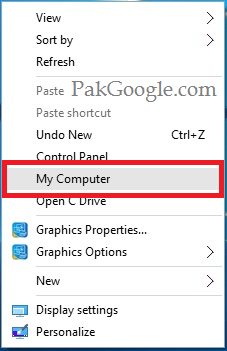
Add My Computer in right click menu
We can easily add My computer to the right click menu of our computer by using windows registry editor tool. Windows registry editor a file which consists to series of instructions in hexadecimal format.
Read below method to add my computer option in right click menu of your computer.
To add My computer option in right click menu of your computer copy below code and paste it in a text box. Save it with .reg extension. As My computer.reg –
Windows Registry Editor Version 5.00
;created by PakGoogle.com
[HKEY_CLASSES_ROOT\Directory\Background\shell\My Computer\command]
@=”c:\\\\windows\\\\explorer.exe /e,::{20D04FE0-3AEA-1069-A2D8-08002B30309D}”
After saving it go to the location where you saved this file and open it by double clicking on it. it will be looking as a registry file. Just run this registry file and add it to windows registry. It will display my computer option in right click menu of your computer.
If you do not like to see my computer option in right click menu of your computer just make an other registry file which is to remove my computer option from the right click menu.
This is the hexadecimal code to make a windows registry file which will be used to create windows registry file to remove the my computer option from right click menu.
Windows Registry Editor Version 5.00
;created by PakGoogle.com
[-HKEY_CLASSES_ROOT\Directory\Background\shell\My Computer\command]
@=”c:\\\\windows\\\\explorer.exe /e,::{20D04FE0-3AEA-1069-A2D8-08002B30309D}”
Add this registry code file to remove my computer option from right click menu of your computer.
Note: if you do not know how to add or modify windows registry file then see the method in this link. Click here.
 IT Inquiry Tech Blog